
 Global

An App turns your smart device
into the navigator for your printer
RICOH Support Station
What's RICOH Support Station?
Work from anywhere, get support anytime
The workforce is changing, and the office is no longer the only place to work.
Regardless of where you work, RICOH Support Station assists you in every step of the way in working with your RICOH printer.
Mobile and Smart- You can check the machine’s status, toner or ink levels, order supplies and use print or scan functions from your smart device.
Keep you connected to the right solution- You can directly access easy setup guide, product support of your machine from your smart device. RICOH Support Station navigates you how to solve troubles you might be facing.
Install RICOH Support Station on your smart device for free. It is available for iOS or Android.

Features
You can print photographs and documents stored on smart devices and in cloud storage.
This is convenient because the settings can be made with the smart device and the printing can be done directly by your printer.
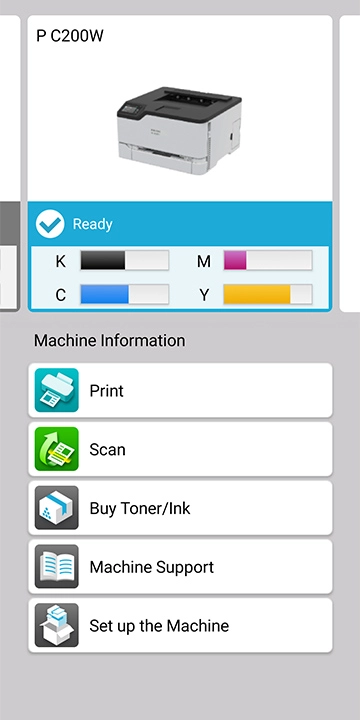
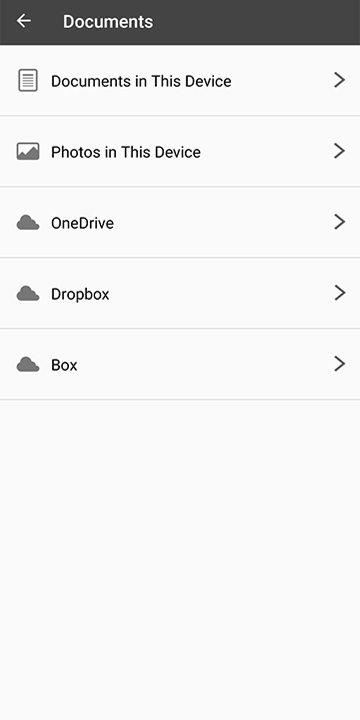
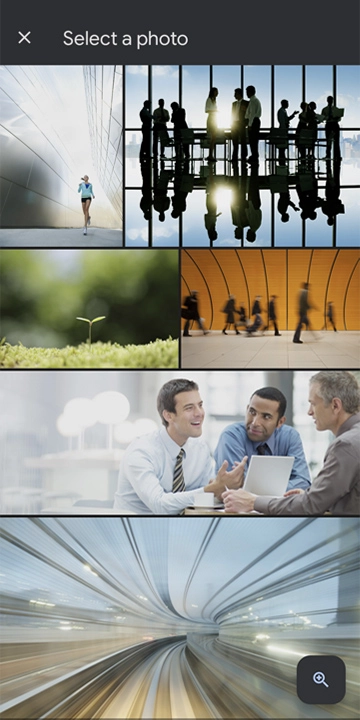
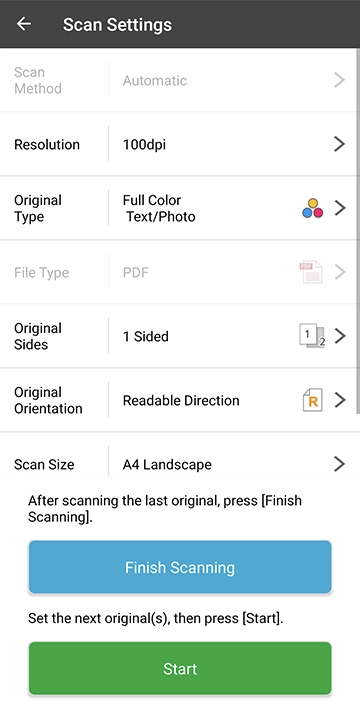
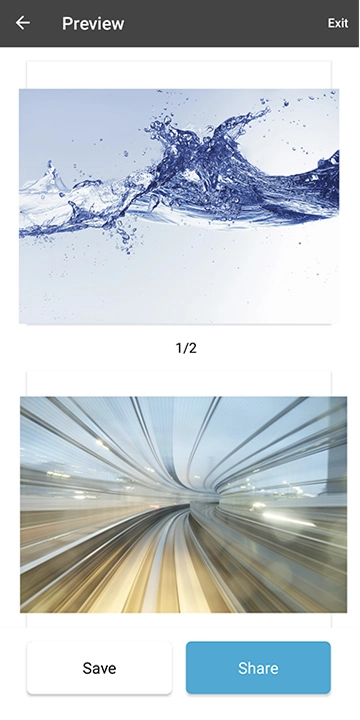
After scanning paper documents on your printer, you can directly save the data on a smart device and in cloud storage so it can be viewed anytime and anywhere.
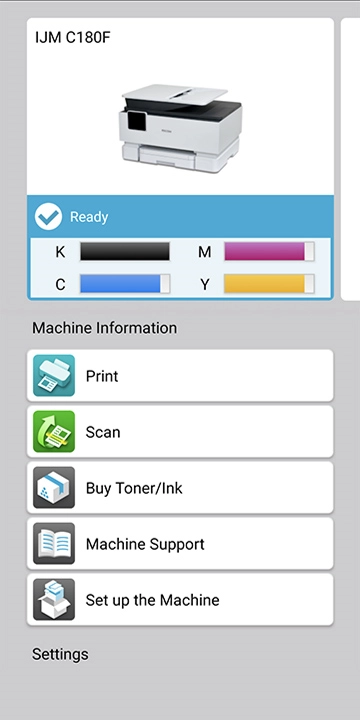
Initial setup
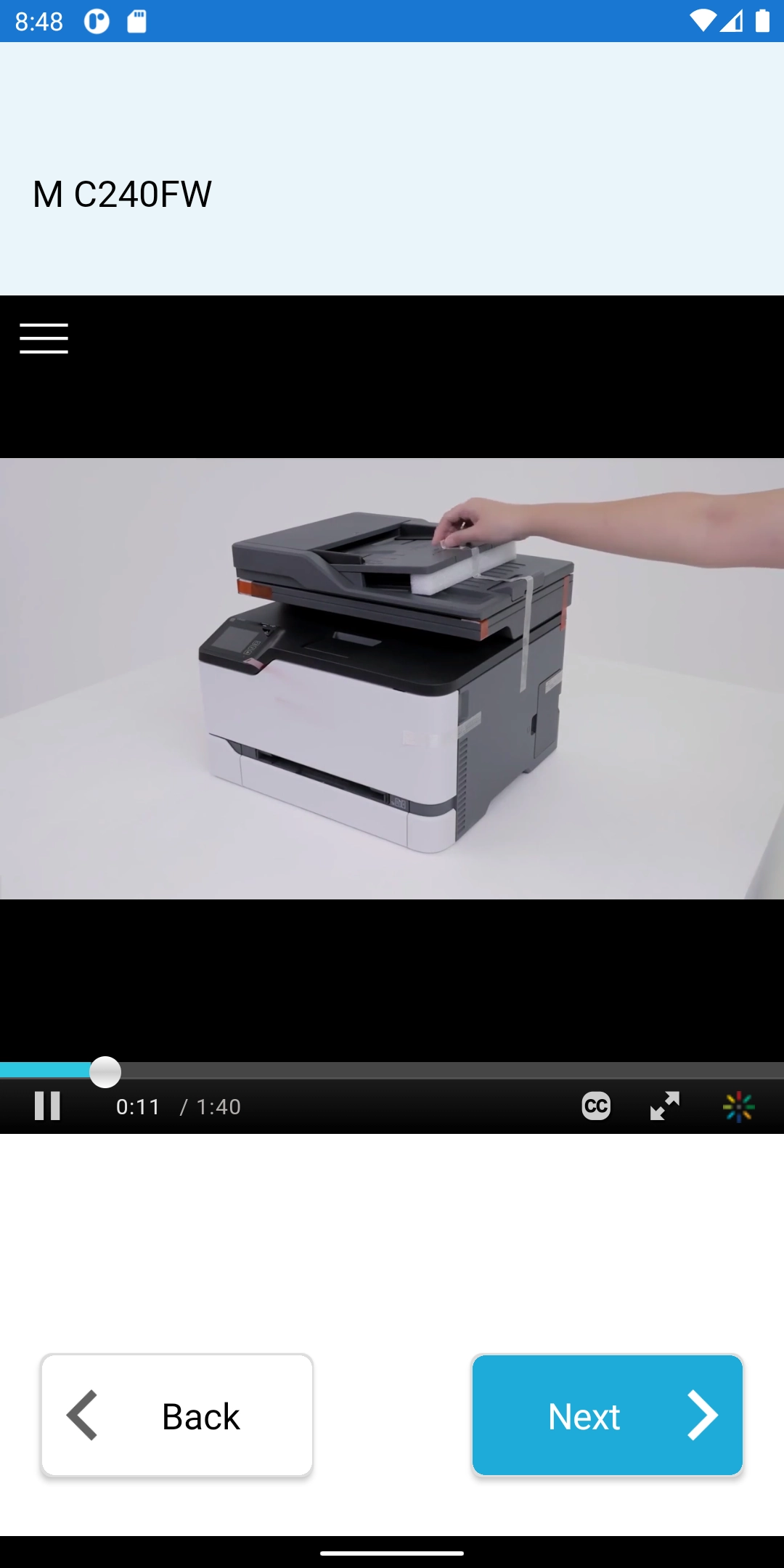
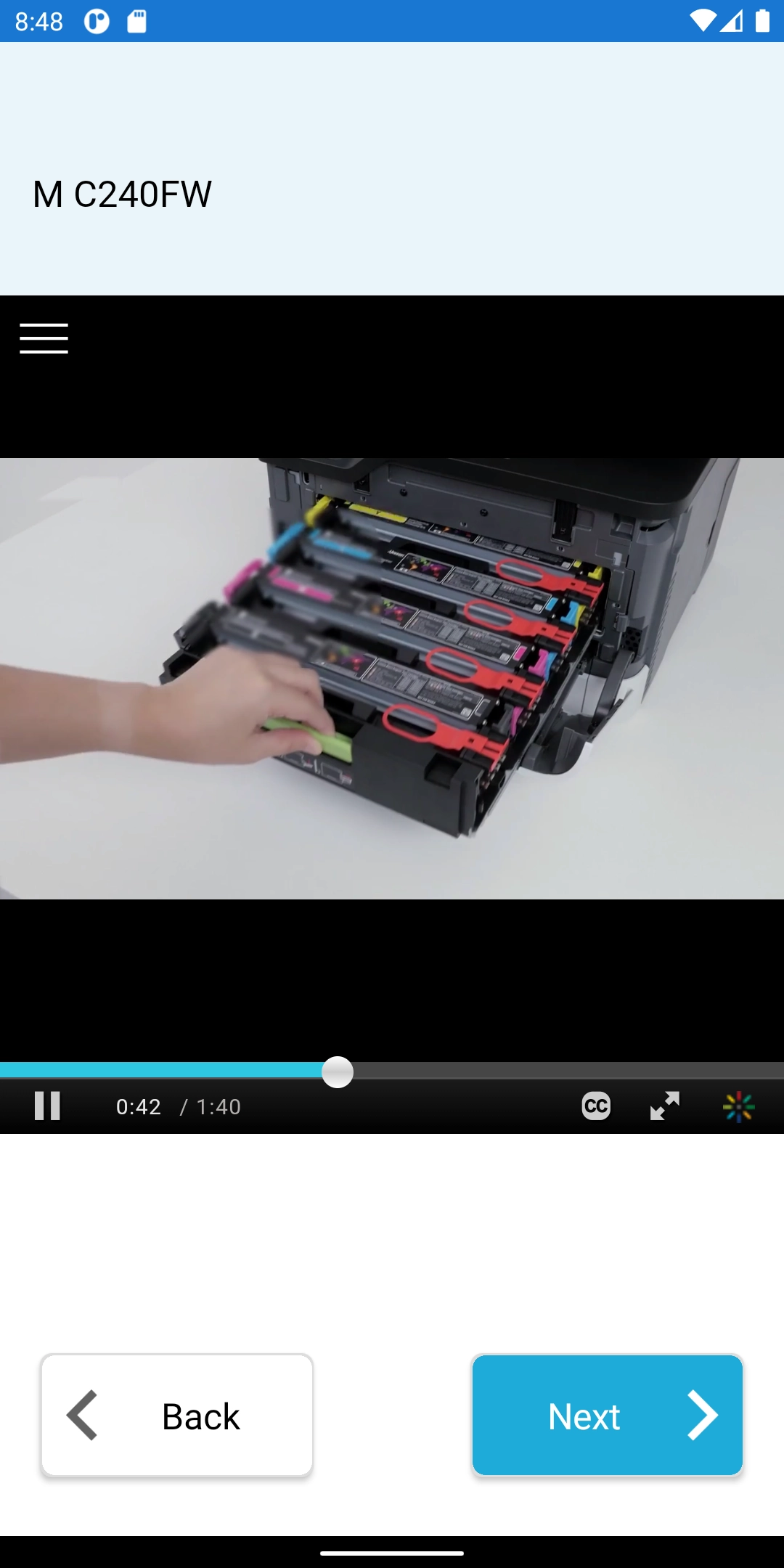
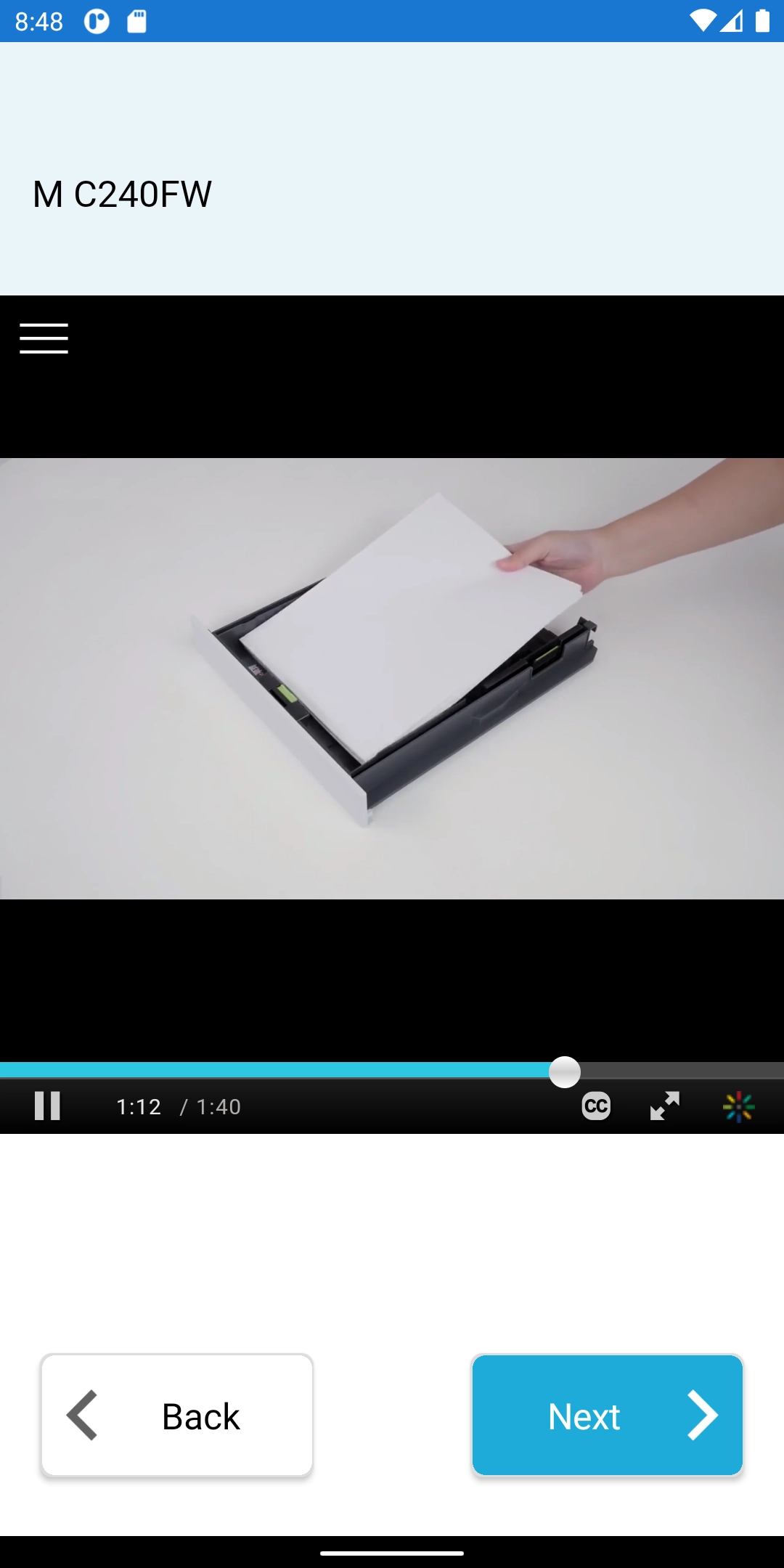
All you need to do for the setup is just to install RICOH Support Station. It will guide you through step by step from unboxing, loading paper and installing toner or ink cartridge for ready-to-use.
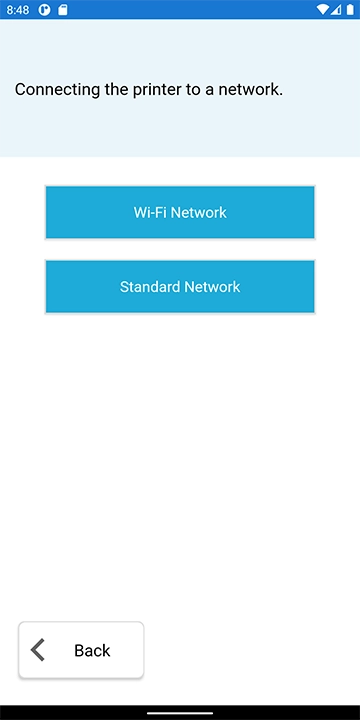
Configure your printer for network and register it on your home screen
RICOH Support Station provides a guidance on how to connect your printer to network.
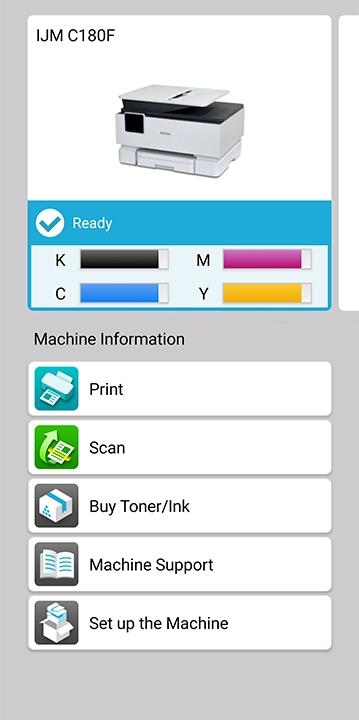
Once the network settings are completed, you can register the machine and you are ready to check its status on the home screen.
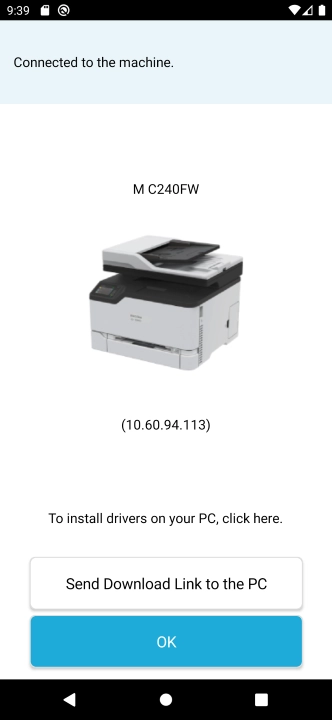
Installing the Printer Driver
RICOH Support Station guides you to the exact place to download the printer driver to your PC. There is no need to spend time on searching.
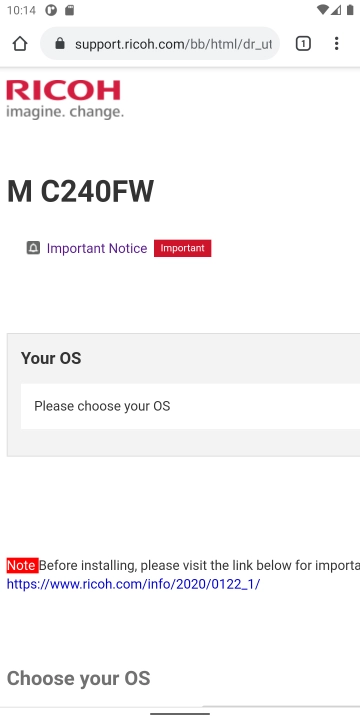
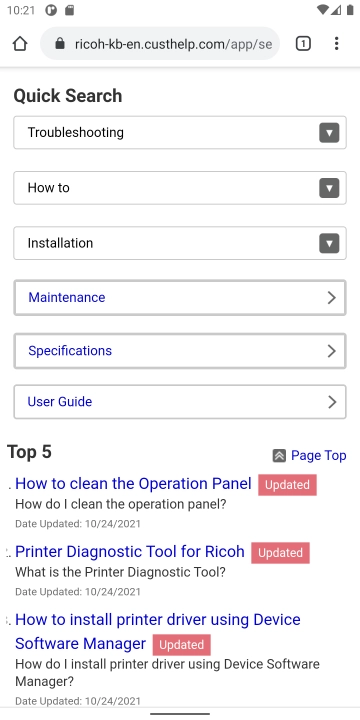
RICOH Support Station can notify you on the home screen when it detects an error. If you need more help to solving troubles, you can directly access the FAQ or operating manual. There is no need to spend time on searching information.
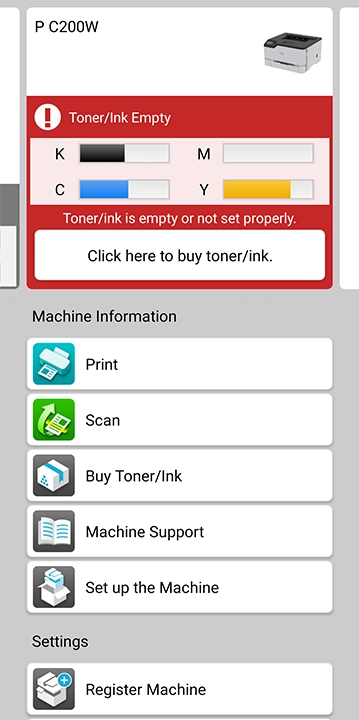
Select your region to get the support you need

Checking toner or ink levels
You can check how much toner or ink remains by color on the home screen.
When it is almost depleted, you will receive a short message which notifies a replacement toner or ink is required.
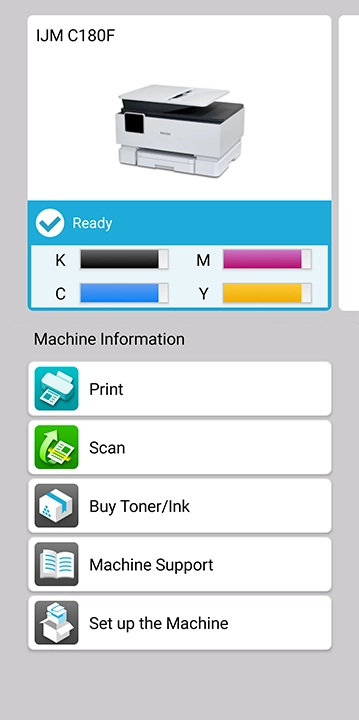
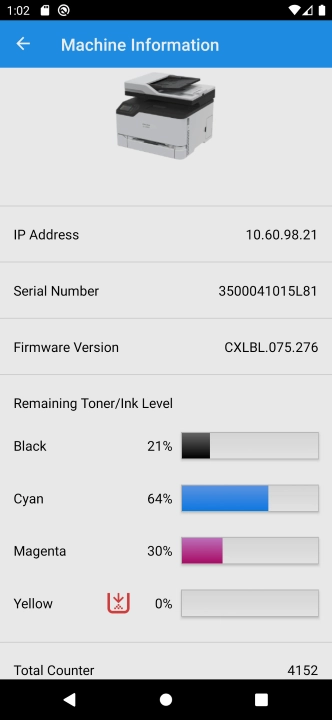
Easy ordering
The app guides you to access to online ordering system for replacement toner or ink.
-
*Availability varies by country.
-
*Pre-registration for online ordering system is required.
Specifications
| iOS Version | Android Version | ||
|---|---|---|---|
| General | OS and versions supported | iOS 14 or later | Android™ 8.0 or later |
| Screen orientation supported | iPad: Vertical iPhone: Vertical |
Android: Vertical | |
| Languages supported*1 | English, Spanish, French, German, Italian, Dutch, Japanese | ||
| Wi-Fi™ connection | Supported | ||
| Printing/scanning with direct connection to storage (cloud, etc.) | Cloud storage service | Supported (Dropbox*2, Box*2, OneDrive*2, Google Drive*2) | |
| Print function | Settings | Print copies, color/B&W, paper size, 2-sided, print page designation*3, | |
| Content (document, photograph) |
|
||
| Scan function | Settings | Saving location/destination, color/B&W, resolution, file type, read size, original sides, original orientation | |
| File type |
|
||
-
*1If the smart device is set to display a language other than those shown, English will be used.
-
*2A separate cloud storage service contract is necessary.
-
*3PDF files only.
Supported Model
Color Multifunction Products/Color Printer
- M C240FW/P C200W
- IJM C180F
- M C320FW
B&W Multifunction Products/B&W Printer
- SP 230DNw / SP 230SFNw
RICOH Support Station App is free and it can be downloaded from the following locations
-
*Apple, the Apple logo, iPhone, and iPod touch are registered trademarks of Apple Inc. in the United States and other countries. iPad is a trademark of Apple Inc.
-
*Google, the Google logo, Android, the Android logo, Google Play, and the Google Play logo are the trademarks or registered trademarks of Google Inc.
-
*Other company names and product names are, as a general rule, the trademarks or registered trademarks of their respective companies.
