


Automatically Finds Supported Devices on the network
Device Software Manager searches the same network segment as your PC and displays a list of supported multifunction products and printers. When a device is selected from the list, its IP address and other network information is acquired for driver setup. Even if a device is not on the same network segment, you can also search by IP address or device number.
Automatically Confirms OS version
Device Software Manager automatically identifies your PC Windows OS version.
Installs the Latest Driver
Device Software Manager downloads the latest supported Driver from the Ricoh download server and installs it.
| PC/Server | PC/AT compatible. Hardware consistent with the recommended environment of the subject OS | |
|---|---|---|
| Necessary disk space | Minimum 1 ㎇ | |
| Supported OS | 32-bit |
Windows 7 SP1/Windows 8.1/Windows 10 Windows Server 2008 |
| 64-bit |
Windows 7 SP1/Windows 8.1/Windows 10 Windows Server 2008/Windows Server 2008R2/Windows Server 2012/Windows Server 2012 R2/Windows Server 2016/Windows Server 2019 |
|
| Supported languages |
English, French, German, Italian, Spanish, Portuguese, Dutch, Danish, Norwegian, Finnish, Swedish, Polish, Czech, Hungarian, Catalan, Turkish, Russian, Greek, Brazilian Portuguese, Simplified Chinese, Traditional Chinese, Korean, Japanese
|
|
- PCL6 Driver
- PCL6 Driver for Universal Print
- PCL6 V4 Driver for Universal Print
- Postsciript3 Driver
- PS Driver for Universal Print
- PS V4 Driver for Universal Print
- DDST Printer Driver
- LAN FAX Driver
Drivers depend on your machine.
Ricoh
| Multifunction Products | Color Multifunction Products | SP C250SF |
|---|---|---|
| SP C252SF | ||
| SP C260SFNw | ||
| SP C261SFNw | ||
| SP C262SFNw | ||
| Aficio MP C305 | ||
| MP C306 | ||
| MP C307 | ||
| SP C360SFNw | ||
| SP C360SNw | ||
| SP C361SFNw | ||
| MP C401 | ||
| MP C406 | ||
| MP C407 | ||
| MP C2003 | ||
| MP C2004 | ||
| MP C2004ex | ||
| MP C2011 | ||
| MP C2094SPJ | ||
| MP C2094exSPJ | ||
| MP C2503 | ||
| MP C2504 | ||
| MP C2504ex | ||
| MP C2594SPJ | ||
| MP C2594exSPJ | ||
| MP C3003 | ||
| MP C3004 | ||
| MP C3004ex | ||
| MP C3503 | ||
| MP C3504 | ||
| MP C3504ex | ||
| MP C4503 | ||
| MP C4504 | ||
| MP C4504ex | ||
| MP C5503 | ||
| MP C5504 | ||
| MP C5504ex | ||
| MP C6003 | ||
| MP C6004 | ||
| MP C6004ex | ||
| MP C6503 | ||
| MP C8003 | ||
| MP CW2201 | ||
| Pro C5200S | ||
| Pro C5210S | ||
| Monochrome Multifunction Products | SP 220SNw | |
| SP 220SFNw | ||
| SP 221S | ||
| SP 221SNw | ||
| SP 221SF | ||
| SP 221SFNw | ||
| SP 277NwX | ||
| SP 277SNwX | ||
| SP 277SFNwX | ||
| SP 320SN | ||
| SP 320SFN | ||
| SP 325SNw | ||
| SP 325SFNw | ||
| SP 377SFNwX | ||
| SP 3600SF | ||
| SP 3610SF | ||
| MP 401 | ||
| MP 402 | ||
| SP 4510SF | ||
| MP 305+ | ||
| MP 501 | ||
| MP 601 | ||
| MP 2001 | ||
| MP 2501 | ||
| MP 2554 | ||
| MP 2555 | ||
| MP 2595SPJ | ||
| MP 3054 | ||
| MP 3055 | ||
| MP 3095SPJ | ||
| MP 3554 | ||
| MP 3555 | ||
| MP 3595SPJ | ||
| MP 4054 | ||
| MP 4055 | ||
| MP 5054 | ||
| MP 5055 | ||
| MP 6054 | ||
| MP 6055 | ||
| MP 6503 | ||
| MP 7503 | ||
| MP 9003 | ||
| Printers | Color Printers | SP C250DN |
| SP C252DN | ||
| SP C260DNw | ||
| SP C261DNw | ||
| SP C262DNw | ||
| SP C340DN | ||
| SP C342DN | ||
| SP C352DN | ||
| SP C360DNw | ||
| SP C435DN | ||
| SP C440DN | ||
| Aficio SP C730DN | ||
| Aficio SP C830DN | ||
| Aficio SP C831DN | ||
| SP C840DN | ||
| SP C842DN | ||
| Monochrome Printers | SP 220Nw | |
| SP 221 | ||
| SP 221Nw | ||
| SP 320DN | ||
| SP 325DNw | ||
| SP 377DNwX | ||
| SP 400DN | ||
| SP 450DN | ||
| SP 3600DN | ||
| Aficio SP 4310N | ||
| SP 4510DN | ||
| SP 4520DN | ||
| SP 5300DN | ||
| SP 5310DN | ||
| SP 6430DN | ||
| SP 8400DN | ||
Savin
| Multifunction Products | Color Multifunction Products | SP C250SF |
|---|---|---|
| SP C252SF | ||
| SP C261SFNw | ||
| SP C262SFNw | ||
| MP C305 | ||
| MP C306 | ||
| MP C307 | ||
| SP C360SFNw | ||
| SP C361SFNw | ||
| MP C401 | ||
| MP C406 | ||
| MP C407 | ||
| MP C2003 | ||
| MP C2004 | ||
| MP C2004ex | ||
| MP C2011 | ||
| MP C2503 | ||
| MP C2504 | ||
| MP C2504ex | ||
| MP C3003 | ||
| MP C3004 | ||
| MP C3004ex | ||
| MP C3503 | ||
| MP C3504 | ||
| MP C3504ex | ||
| MP C4503 | ||
| MP C4504 | ||
| MP C4504ex | ||
| MP C5503 | ||
| MP C6003 | ||
| MP C6004 | ||
| MP C6004ex | ||
| MP C6503 | ||
| MP C8003 | ||
| MP CW2201 | ||
| Pro C5200S | ||
| Pro C5210S | ||
| Monochrome Multifunction Products | SP 3600SF | |
| SP 3610SF | ||
| MP 401 | ||
| MP 402 | ||
| SP 4510SF | ||
| MP 305+ | ||
| MP 501 | ||
| MP 601 | ||
| MP 2001 | ||
| MP 2501 | ||
| MP 2554 | ||
| MP 2555 | ||
| MP 3054 | ||
| MP 3055 | ||
| MP 3554 | ||
| MP 3555 | ||
| MP 4054 | ||
| MP 4055 | ||
| MP 5054 | ||
| MP 5055 | ||
| MP 6054 | ||
| MP 6055 | ||
| MP 6503 | ||
| MP 7503 | ||
| MP 9003 | ||
| Printers | Color Printers | SP C250DN |
| SP C252DN | ||
| SP C261DNw | ||
| SP C262DNw | ||
| SP C340DN | ||
| SP C342DN | ||
| SP C352DN | ||
| SP C360DNw | ||
| SP C435DN | ||
| SP C440DN | ||
| SP C730DN | ||
| SP C830DN | ||
| SP C831DN | ||
| SP C840DN | ||
| SP C842DN | ||
| Monochrome Printers | SP 3600DN | |
| SP 4310N | ||
| SP 4510DN | ||
| SP 4520DN | ||
| SP 5300DN | ||
| SP 5310DN | ||
| SP 6430DN | ||
| SP 8400DN | ||
Lanier
| Multifunction Products | Color Multifunction Products | SP C250SF |
|---|---|---|
| SP C252SF | ||
| SP C261SFNw | ||
| SP C262SFNw | ||
| MP C305 | ||
| MP C306 | ||
| MP C307 | ||
| SP C360SFNw | ||
| SP C361SFNw | ||
| MP C401 | ||
| MP C406 | ||
| MP C407 | ||
| MP C2003 | ||
| MP C2004 | ||
| MP C2004ex | ||
| MP C2011 | ||
| MP C2503 | ||
| MP C2504 | ||
| MP C2504ex | ||
| MP C3003 | ||
| MP C3004 | ||
| MP C3004ex | ||
| MP C3503 | ||
| MP C3504 | ||
| MP C3504ex | ||
| MP C4503 | ||
| MP C4504 | ||
| MP C4504ex | ||
| MP C5503 | ||
| MP C6003 | ||
| MP C6004 | ||
| MP C6004ex | ||
| MP C6503 | ||
| MP C8003 | ||
| MP CW2201 | ||
| Pro C5200S | ||
| Pro C5210S | ||
| Monochrome Multifunction Products | SP 3600SF | |
| SP 3610SF | ||
| MP 401 | ||
| MP 402 | ||
| SP 4510SF | ||
| MP 305+ | ||
| MP 501 | ||
| MP 601 | ||
| MP 2001 | ||
| MP 2501 | ||
| MP 2554 | ||
| MP 2555 | ||
| MP 3054 | ||
| MP 3055 | ||
| MP 3554 | ||
| MP 3555 | ||
| MP 4054 | ||
| MP 4055 | ||
| MP 5054 | ||
| MP 5055 | ||
| MP 6054 | ||
| MP 6055 | ||
| MP 6503 | ||
| MP 7503 | ||
| MP 9003 | ||
| Printers | Color Printers | SP C250DN |
| SP C252DN | ||
| SP C261DNw | ||
| SP C262DNw | ||
| SP C340DN | ||
| SP C342DN | ||
| SP C352DN | ||
| SP C360DNw | ||
| SP C435DN | ||
| SP C440DN | ||
| SP C730DN | ||
| SP C830DN | ||
| SP C831DN | ||
| SP C840DN | ||
| SP C842DN | ||
| Monochrome Printers | SP 3600DN | |
| SP 4310N | ||
| SP 4510DN | ||
| SP 4520DN | ||
| SP 5300DN | ||
| SP 5310DN | ||
| SP 6430DN | ||
| SP 8400DN | ||
NRG
| Multifunction Products | Color Multifunction Products | MP C305 |
|---|---|---|
| MP C306 | ||
| MP C307 | ||
| SP C360SFNw | ||
| SP C360SNw | ||
| SP C361SFNw | ||
| MP C401 | ||
| MP C406 | ||
| MP C407 | ||
| MP C2003 | ||
| MP C2004 | ||
| MP C2004ex | ||
| MP C2011 | ||
| MP C2503 | ||
| MP C2504 | ||
| MP C2504ex | ||
| MP C3003 | ||
| MP C3004 | ||
| MP C3004ex | ||
| MP C3503 | ||
| MP C3504 | ||
| MP C3504ex | ||
| MP C4503 | ||
| MP C4504 | ||
| MP C4504ex | ||
| MP C5503 | ||
| MP C5504 | ||
| MP C5504ex | ||
| MP C6003 | ||
| MP C6004 | ||
| MP C6004ex | ||
| MP C6503 | ||
| MP C8003 | ||
| MP CW2201 | ||
| Monochrome Multifunction Products | SP 3600SF | |
| SP 3610SF | ||
| MP 401 | ||
| MP 402 | ||
| SP 4510SF | ||
| MP 305+ | ||
| MP 501 | ||
| MP 601 | ||
| MP 2001 | ||
| MP 2501 | ||
| MP 2554 | ||
| MP 2555 | ||
| MP 3054 | ||
| MP 3055 | ||
| MP 3554 | ||
| MP 3555 | ||
| MP 4054 | ||
| MP 4055 | ||
| MP 5054 | ||
| MP 5055 | ||
| MP 6054 | ||
| MP 6055 | ||
| MP 6503 | ||
| MP 7503 | ||
| MP 9003 | ||
| Printers | Color Printers | SP C340DN |
| SP C342DN | ||
| SP C352DN | ||
| SP C440DN | ||
| SP C730DN | ||
| SP C830DN | ||
| SP C831DN | ||
| SP C840DN | ||
| SP C842DN | ||
| Monochrome Printers | SP 3600DN | |
| SP 4310N | ||
| SP 4510DN | ||
| SP 4520DN | ||
| SP 5300DN | ||
| SP 5310DN | ||
| SP 6430DN | ||
| SP 8400DN | ||
infotec
| Multifunction Products | Color Multifunction Products | MP C305 |
|---|---|---|
| MP C306 | ||
| MP C307 | ||
| MP C401 | ||
| MP C406 | ||
| MP C407 | ||
| MP C2003 | ||
| MP C2004 | ||
| MP C2004ex | ||
| MP C2011 | ||
| MP C2503 | ||
| MP C2504 | ||
| MP C2504ex | ||
| MP C3003 | ||
| MP C3004 | ||
| MP C3004ex | ||
| MP C3503 | ||
| MP C3504 | ||
| MP C3504ex | ||
| MP C4503 | ||
| MP C4504 | ||
| MP C4504ex | ||
| MP C5503 | ||
| MP C5504 | ||
| MP C5504ex | ||
| MP C6003 | ||
| MP C6004 | ||
| MP C6004ex | ||
| MP C6503 | ||
| MP C8003 | ||
| Monochrome Multifunction Products | MP 401 | |
| MP 402 | ||
| SP 4510SF | ||
| MP 305+ | ||
| MP 501 | ||
| MP 601 | ||
| MP 2001 | ||
| MP 2501 | ||
| MP 2554 | ||
| MP 2555 | ||
| MP 3054 | ||
| MP 3055 | ||
| MP 3554 | ||
| MP 3555 | ||
| MP 4054 | ||
| MP 4055 | ||
| MP 5054 | ||
| MP 5055 | ||
| MP 6054 | ||
| MP 6055 | ||
| MP 6503 | ||
| MP 7503 | ||
| MP 9003 | ||
Gestetner (China)
| Multifunction Products | Color Multifunction Products | DSc530SP |
|---|---|---|
| Dsc1020 | ||
| Dsc1120 | ||
| Dsc1025 | ||
| Dsc1030 | ||
| Dsc1045 | ||
| Dsc1060 | ||
| DSc1220 | ||
| DSc1220ex | ||
| DSc1225 | ||
| DSc1225ex | ||
| DSc1230 | ||
| DSc1230ex | ||
| DSc1245 | ||
| DSc1245ex | ||
| DSc1260 | ||
| DSc1260ex | ||
| Monochrome Multifunction Products | DSm1020sp | |
| DSm1025sp | ||
| DSm2525sp | ||
| DSm2625sp | ||
| DSm2530sp | ||
| DSm2630sp | ||
| DSm2535sp | ||
| DSm2635sp | ||
| DSm2540sp | ||
| DSm2640sp | ||
| DSm2550sp | ||
| DSm2650sp | ||
| DSm2560sp | ||
| DSm2660sp | ||
Install Device Software Manager and then install the necessary driver.
STEP1
Execute driver_web_installer.exe
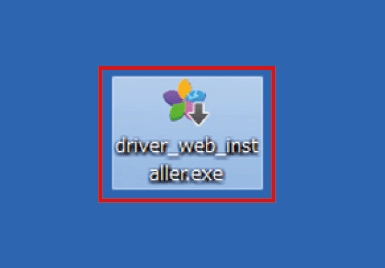
STEP2
Accept the Web Installer license agreement and click [Install].
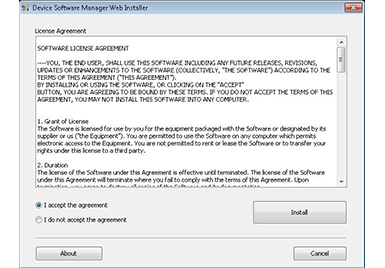
STEP3
Device Software Manager setup begins. Click [Next].
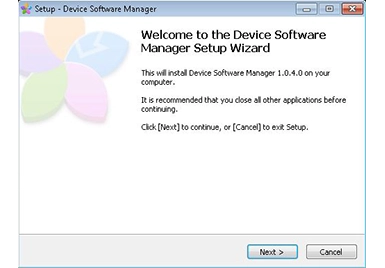
STEP4
Accept the Device Software Manager license agreement and click [Next].
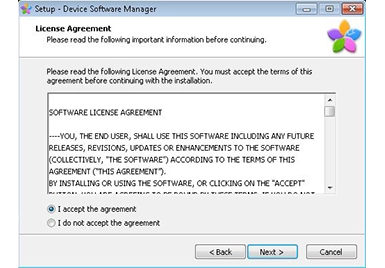
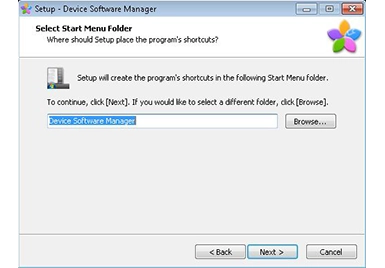
STEP5
Select the Start Menu folder. Click [Next].
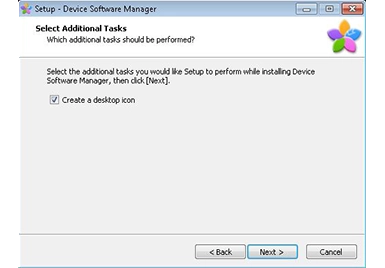
STEP6
Perform the additional task selection. Click [Next].
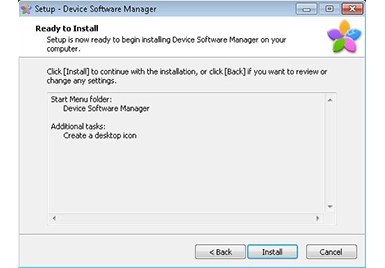
STEP7
The installation preparation is complete. Click [Install].
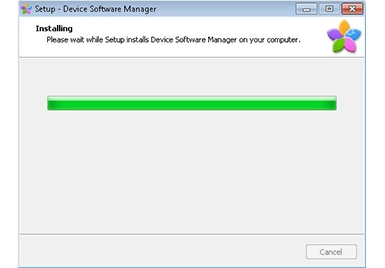
STEP8
The installation begins
STEP9
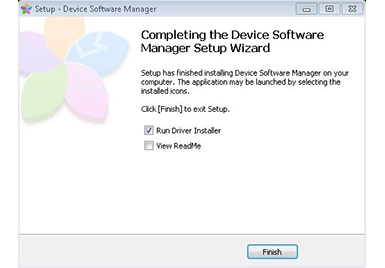
The Device Software Manager installation is complete. If the driver installation is to be executed next, put a check in [Execute Software Manager] and click [Finish].
STEP10
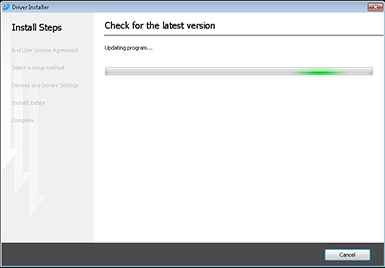
A check for updates to Device Software Manager is done.
STEP11
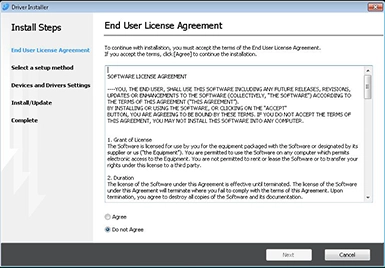
Driver installation begins.
STEP12
Subsequent steps follow the drivers installation procedure.
Install drivers using a Device Software Manager utility that has already been installed.
STEP1
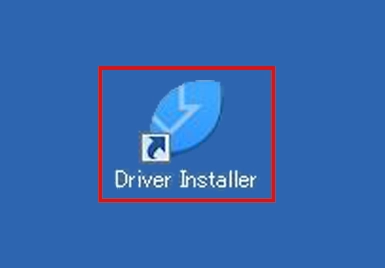
Click [Software Manager] on the desktop or click [Software Manager] under [Device Software Manager] on the Start Menu.
STEP2
A check for updates to Device Software Manager is done.
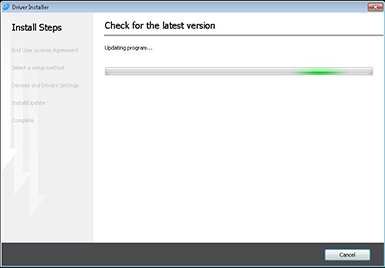
STEP3
Driver installation begins.
STEP4
Subsequent steps follow the driver installation procedure.
- It is necessary to connect to the Internet from a PC.
- Administrator authority is necessary with respect to the PC.
- This application is resident on the PC.
- There are planned halts to the system provided. We will give advance notification when a halt is to occur.
